Cursor AI is an AI code editor designed to integrate artificial intelligence directly into the software development process. Built on the familiar foundation of Visual Studio Code, it offers developers a seamless transition while adding powerful AI capabilities that assist with code generation, debugging, and refactoring. Unlike traditional editors that rely on plugins for AI assistance, Cursor embeds these features natively, allowing for a more fluid and context-aware experience.
The core idea behind Cursor is to act as an intelligent code editor that understands your entire project. It can analyze your codebase, suggest changes, and even execute multi-file edits based on natural language prompts. With models like GPT-4 and GPT-4 Turbo integrated, Cursor provides state-of-the-art code assistance directly in your editing environment.
For tech enthusiasts exploring the future of development, Cursor represents a significant shift. It’s not just about autocompletion; it’s about having a collaborative AI pair programmer that can handle complex tasks, answer questions, and help you learn new frameworks or languages.
Top Features of Cursor AI
Cursor AI is packed with features that elevate the coding experience. Here are the standout capabilities that make it a go-to choice for developers:
- AI-Powered Code Generation: Write entire functions or blocks of code from natural language descriptions. This automated code writing accelerates development and reduces boilerplate.
- Smart Autocomplete: Cursor predicts your next lines of code with remarkable accuracy, understanding the context of your project and coding style.
- Edit with AI: Select a portion of code and ask the AI to refactor, optimize, or fix it. The editor can apply changes instantly and explain what it did.
- Multi-File Coordination: Unlike many tools that work on a single file, Cursor can propose changes that span multiple files, making feature implementation much easier.
- Chat Interface: A built-in chat panel lets you ask questions about your codebase, request explanations, or get suggestions without leaving the editor.
- Codebase Awareness: Cursor indexes your project files, enabling it to provide more relevant and accurate responses that account for your existing architecture.
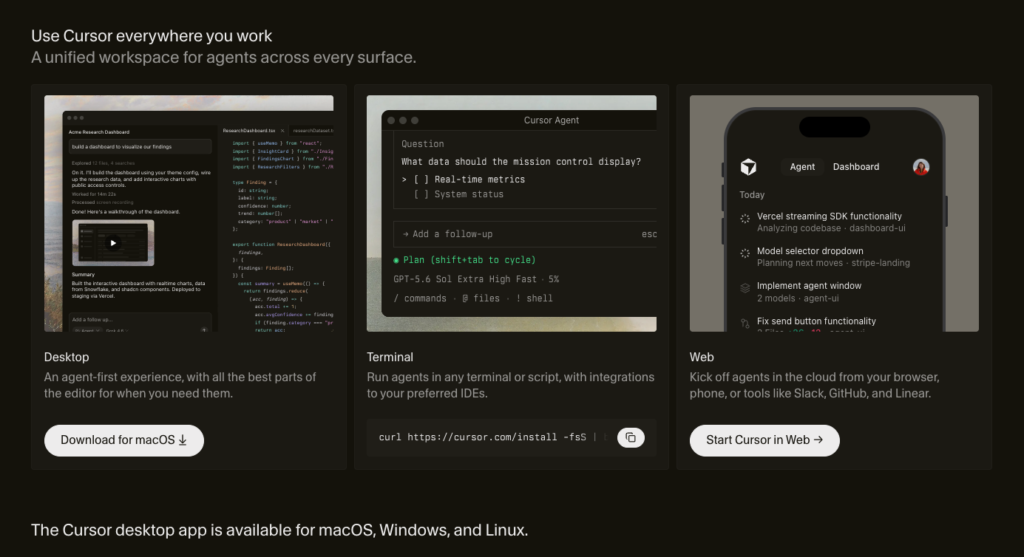
These features work together to create a cohesive development environment that feels like having a senior developer sitting beside you, ready to help at any moment.
How to Use Cursor AI for Coding
Getting started with Cursor is straightforward, even if you’re new to AI-powered coding tools. Here’s a practical guide to integrating Cursor into your workflow:
- Installation: Download the Cursor AI IDE from the official website. It’s available for Windows, macOS, and Linux. Since it’s based on Visual Studio Code, the transition feels natural.
- Import Your Environment: You can import your existing VS Code settings, extensions, and keybindings, so you feel right at home immediately.
- Open Your Project: Load a project folder. Cursor will start indexing your files to build its understanding of your codebase. This process is quick and happens in the background.
- Use the Chat Panel: Press Cmd/Ctrl+L to open the chat. You can ask questions like “Where is the login function?” or “How do I optimize this API call?” The AI will reference your code.
- Generate Code with Prompts: In a file, type a comment describing what you want, then press Tab to let Cursor generate the code. For example,
// function to fetch user dataand Tab will produce a complete function. - Edit and Refactor: Select a piece of code, press Cmd/Ctrl+K, and give instructions like “Make this more readable” or “Convert to async.” Cursor will rewrite the selection.
- Multi-File Changes: Use the chat to request changes across files, such as “Add error handling to all API calls.” Cursor will list the files it wants to modify and you can review and accept.
These steps will get you up and running quickly. As you become comfortable, you’ll discover more advanced ways to leverage Cursor’s AI for complex development tasks.
Cursor AI Pricing and Subscription Plans
Cursor offers several pricing tiers to accommodate different needs, from individual developers to teams and enterprises. Here’s an overview of the current plans:
| Plan | Target Users | Pricing | Key Features |
|---|---|---|---|
| Free | Casual developers | $0 | Basic AI features, limited requests, community support |
| Pro | Individual developers | $20/month | Unlimited AI use, priority access, more context windows |
| Team | Small teams | $40/user/month | Shared billing, admin controls, collaboration features |
| Enterprise | Large organizations | Custom | SSO, governance, dedicated support, deployment options |
The cost of Cursor is competitive given the productivity boost it provides. For many developers, the Pro plan pays for itself in time saved. It’s worth starting with the free plan to gauge how well the AI aligns with your coding style before committing.
Cursor AI Integrations with Your Development Stack
One of the great advantages of Cursor is its compatibility with the broader developer ecosystem. Because it’s built on VS Code, it supports a wide range of extensions and plugins that you already use. This means you don’t have to sacrifice your favorite tools.
Version Control Integration
Cursor works seamlessly with Git. You can commit, push, pull, and manage branches from within the editor. The AI can also help you write commit messages by analyzing your changes.
Built-in Extensions
Cursor has its own set of AI-specific extensions, such as a codebase indexing tool and interactive documentation. These extend the core capabilities beyond what standard extensions offer.
Third-Party Integrations
You can connect Cursor to services like GitHub, GitLab, and Bitbucket for smoother collaboration. It also supports debugging tools and terminals, making it a complete development environment.
API Access
For developers looking to build custom integrations, Cursor provides APIs that allow you to incorporate its AI features into your own tools or workflows.
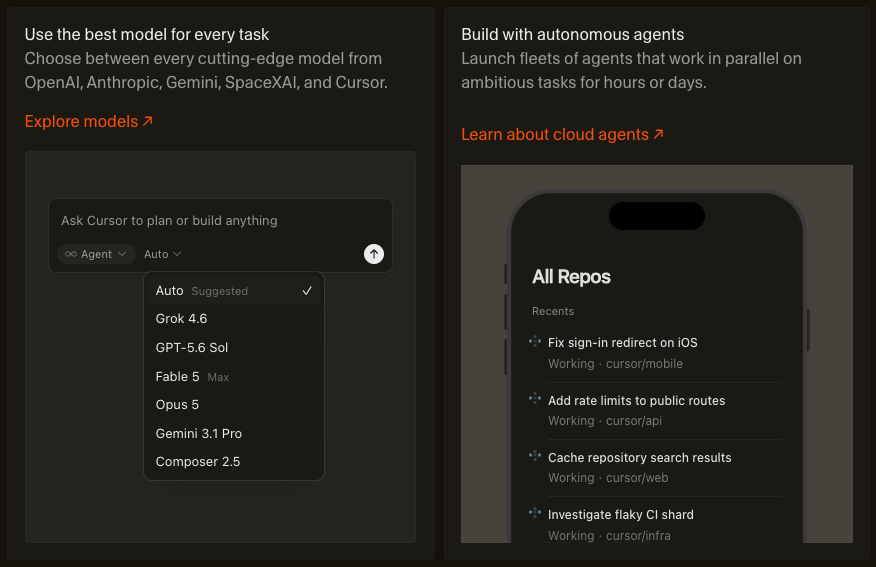
The ability to integrate with your existing stack means you can adopt Cursor without overhauling your entire development setup. It fits into your current workflow rather than forcing you to adapt to a new one.
AI Coding Trends: How Cursor AI Fits In
The world of software development is experiencing a paradigm shift with the rise of AI. AI coding tools are no longer a novelty; they are becoming an essential part of the developer’s toolkit. Cursor is at the forefront of this trend, embodying the movement toward more intelligent and automated programming.
From Autocomplete to Natural-Language Code Generation
One of the biggest AI in software development trends is the move from simple autocomplete to code generation that understands natural language. Cursor leverages GPT-4 and GPT-4 Turbo to interpret developer intent, turning comments and prompts into functional code. This reduces the cognitive load and lets developers focus on higher-level design.
That shift, describing what you want instead of typing every line, is the same instinct behind vibe coding, and Cursor’s Agent mode is one of the clearest examples of it in practice.
AI Across the Full Development Lifecycle
Another trend is the integration of AI across the entire development lifecycle, from planning to testing. Cursor’s ability to handle multi-file edits and refactoring reflects this broader approach. It’s not just about writing code; it’s about maintaining and evolving software projects with AI assistance.
The future of coding is likely to see even deeper integration of AI, with more context-aware assistance and proactive suggestions. Cursor is positioned to evolve with these trends, continuously adding features that align with the needs of modern developers. As AI becomes more advanced, tools like Cursor will become even more intuitive and powerful.
Who Should Actually Use It
Cursor is a strong fit if you’re an intermediate-to-experienced developer who wants an editor that understands your whole project, not just the open file. It pays for itself fastest on codebases you already know well, where you can spot a wrong suggestion quickly rather than having to verify everything from scratch.
It’s a weaker fit for complete beginners, accepting AI-generated code you can’t evaluate is how bugs and security issues slip through, and Cursor doesn’t remove the need for you to understand what’s being written. It also gets less impressive on very large monorepos, where indexing and context limits start to show.
User Reviews: What Developers Say About Cursor AI
To understand the real impact of Cursor, it’s helpful to look at feedback from the developer community. Many professionals have shared their experiences, highlighting both strengths and areas for improvement.
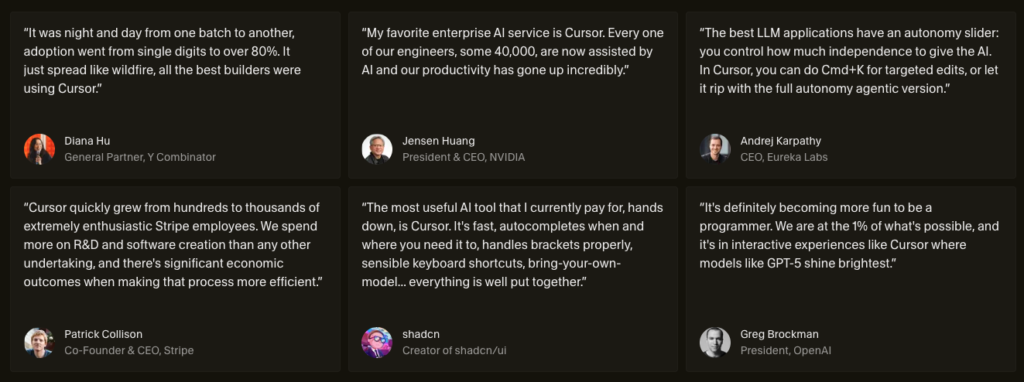
Positive Feedback: Developers frequently praise Cursor for its developer productivity boost. The AI’s ability to generate boilerplate code and refactor existing code saves hours each week. Users also appreciate the chat feature, which allows them to ask questions about unfamiliar codebases. The seamless integration with VS Code extensions is another common point of approval.
Constructive Criticism: Some users note that the AI sometimes generates code that doesn’t perfectly align with best practices or specific project conventions. Others mention that the free plan can be limiting for heavy users, and the cost of the pro plan may be a barrier for hobbyists. However, these concerns are often outweighed by the efficiency gains.
Overall, the consensus is that Cursor AI is a powerful ally for developers. A recurring theme in reviews is that it feels like having a mentor available on demand. The AI IDE has become a trusted companion for many professionals, from freelancers to engineers at large companies.
Next Steps: Making Cursor AI Your Coding Partner
Cursor AI represents a significant leap forward in how developers write, edit, and maintain code. By embedding powerful AI models directly into a familiar IDE, it removes friction and enhances creativity. The key takeaway is that you don’t need to wait for the future of AI coding—it’s available now in a tool that fits seamlessly into your existing workflow.
To get the most out of Cursor, start by exploring one feature at a time. First, try the autocomplete and chat to understand how the AI responds to your style. Then, gradually incorporate multi-file edits and code generation into your daily routine. Evaluate whether the productivity gains justify upgrading to the Pro or Team plan. As you become more proficient, you’ll likely find Cursor indispensable, helping you ship code faster and with greater confidence.